
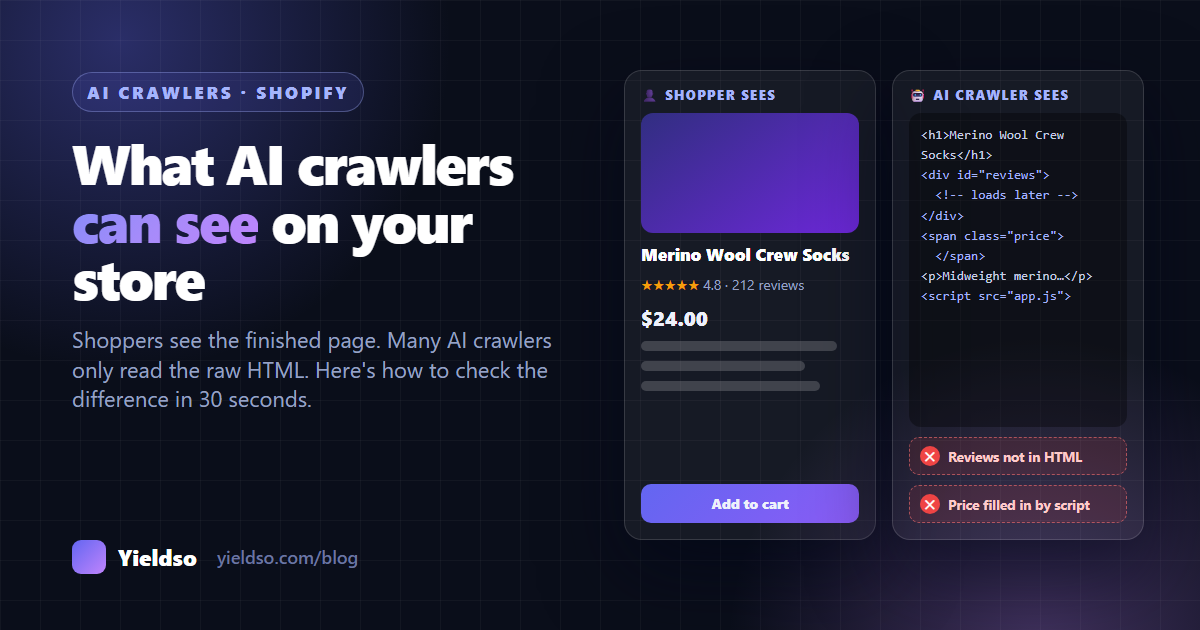
Two things decide what an AI crawler gets from your store: whether robots.txt lets it in, and whether the facts that matter are in your page's raw HTML. Many AI crawlers don't run JavaScript, so a price, review or spec that loads by script is invisible to them. To check in 30 seconds, open yourstore.com/robots.txt, then open a product page's source (Ctrl+U) and search it for your price and a line from a review. If something you can see on the page isn't in the source, many AI crawlers can't see it either.
When a shopper opens your product page, their browser downloads the HTML, runs your theme's and apps' JavaScript, loads the reviews widget, converts the currency and draws the finished page. It all happens in a second, so it's easy to forget that it's several steps.
Many AI crawlers stop after the first step. They download the HTML, read the text that's in it, and move on. Anything that only appears once a script runs (often the reviews, sometimes the price, often the size chart) doesn't exist as far as they're concerned. And if your robots.txt turns them away, they never get even that far.
This guide shows you how to check both in a few minutes, what typically goes wrong on Shopify stores, and how to fix it.
The three kinds of AI crawler
"AI crawlers" aren't one thing. The big AI companies each run several, for different jobs, and robots.txt rules apply to them by name. That matters, because blocking the wrong one can quietly take you out of AI answers.
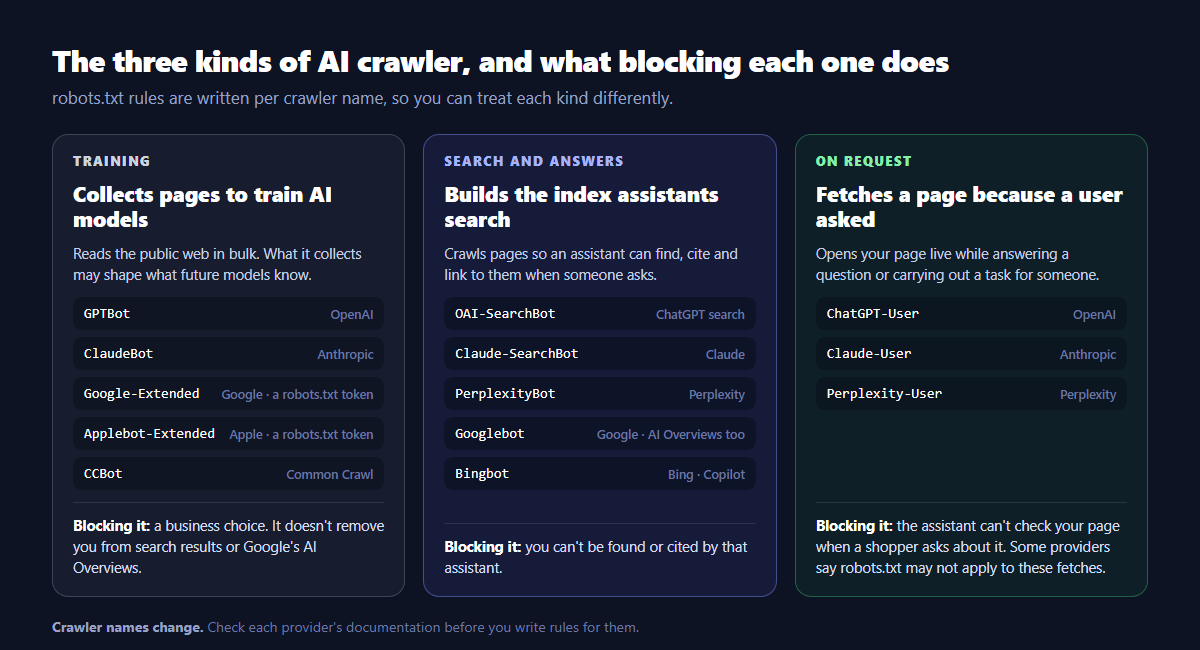
- Training crawlers (such as
GPTBot,ClaudeBot,CCBot) collect public pages that may be used to train future AI models. Blocking them is a business decision about your content. It doesn't remove you from search results. - Search and answer crawlers (such as
OAI-SearchBot,Claude-SearchBot,PerplexityBot, plusGooglebotandBingbot) build the indexes assistants search when someone asks a question. Block these and that assistant can't find or cite you. - On-request fetchers (such as
ChatGPT-User,Claude-User,Perplexity-User) open a specific page because a person asked the assistant to look at it, or because it's checking a detail while answering. Some providers sayrobots.txtrules may not apply to these, because a person started the request.
Two names need special care:
Google-Extendedisn't a separate crawler. It's arobots.txttoken that controls whether Google may use your content for its Gemini models, including grounding answers in Gemini apps. It doesn't affect Google Search, and that includes AI Overviews and AI Mode. Those followGooglebot.Applebot-Extendedworks the same way for Apple's AI models. PlainApplebotpowers Siri and Spotlight search results.
Crawler names and rules change. Before you write rules for a specific crawler, check that provider's own documentation for its current names.
The 30-second check
Do this on one important product page first, then on a collection page and your home page.
1 Are AI crawlers allowed in? Read your robots.txt
Open https://yourstore.com/robots.txt in a browser. It's a plain-text list of groups, each starting with User-agent: and followed by Disallow: and Allow: rules.
What a block looks like:
User-agent: OAI-SearchBot
Disallow: /
Disallow: / under a crawler's name means "stay out of the whole site". Also look at the catch-all User-agent: * group. Shopify's default rules there keep crawlers out of the cart, checkout, account and internal search pages, which is fine. A Disallow: / under * is not.
What's normal: Shopify's default robots.txt doesn't block the main AI crawlers. If you see AI crawlers listed by name, someone (you, a developer or an app) has customised the file.
Faster: the free AI Crawler Checker reads your robots.txt and shows, crawler by crawler, which ones are allowed, split into "AI search and answers" and "model training".
2 Can they read what matters? Search the page source
This is the step most people get wrong, because the obvious tool, Inspect, shows the page after JavaScript has run. You need the raw HTML instead:
- Open a product page.
- Press Ctrl+U (Windows) or ⌥+⌘+U (Mac), or right-click and choose View page source. This opens the HTML exactly as the server sent it.
- Press Ctrl+F / ⌘+F and search for:
- the price, written as it appears on the page (e.g.
24.00) - a sentence from one of your reviews
- a key fact from the description or specs (a material, a dimension)
- the size guide or another tab's content
- the price, written as it appears on the page (e.g.
Reading the result: if you can find it in the source, crawlers can read it. If it's on the page but not in the source, it's loaded by a script, and crawlers that don't run JavaScript won't see it.
3 Is the page telling them to stay away? Check the directives
Still in the page source, search for robots and nosnippet:
<meta name="robots" content="noindex">keeps the page out of search results altogether.nosnippetstops Google from showing text from the page in results, and that includes using it in AI Overviews and AI Mode.data-nosnippeton an element hides just that part of the page from snippets.
These are sometimes added by an app or theme setting and then forgotten. On a product page you want found, none of them should be there.
+ Optional: test as a crawler with curl
If you're comfortable with a terminal, you can request a page with a crawler's user-agent name to see whether anything in front of your store refuses it:
curl -I -A "OAI-SearchBot" https://yourstore.com/products/your-productA 200 status means the page was served. A 403, a 429 or a challenge page suggests a bot-protection rule is turning crawlers away. This doesn't perfectly imitate the real crawler (some firewalls verify crawlers by their IP address), but it catches the common problems.
What usually goes wrong on Shopify
| Problem | How you'll spot it | Fix |
|---|---|---|
A copied "block AI bots" snippet in robots.txt.liquid | AI crawlers listed by name with Disallow: / | Decide which crawlers you actually want to block (see below). Keep search and on-request crawlers allowed. |
| Reviews loaded by script | Review text missing from the page source | Check your review app's settings for an option that puts reviews or a review summary in the page HTML. At minimum, make sure your star rating and review count are in your structured data. |
| Price rewritten by an app (currency, subscription or discount apps) | Price missing from the source, or a different price in the source | Make sure the theme still outputs the base price in HTML and in structured data. Check the app's settings for a server-rendered option. |
| Key facts in tabs, pop-ups or images | Specs or size guide missing from the source, or only in an image or PDF | Put the key facts in the product description or a metafield the theme outputs as text. Keep images as an addition, not the only copy. |
| Bot protection or geolocation redirects | curl returns 403, 429 or a redirect to another country's store | Allow-list known search and AI crawlers in the app or firewall, and don't force-redirect crawlers by IP location. |
A leftover noindex or nosnippet | Directive found in the page source | Find the app or theme setting that adds it and remove it on pages you want found. |
| Storefront password still on | Everyone, crawlers included, sees the password page | Remove it under Online Store → Preferences once you launch. |
Editing robots.txt on Shopify, safely
Shopify generates robots.txt from a theme template called robots.txt.liquid. It doesn't exist until you create it: Online Store → Themes → … → Edit code, then under Templates choose Add a new template and pick robots.
The safe pattern is to keep Shopify's default rules and add yours after them. Shopify's default template is:
{% for group in robots.default_groups %}
  {{- group.user_agent }}

  {%- for rule in group.rules -%}
    {{ rule }}
  {%- endfor -%}

  {%- if group.sitemap != blank -%}
    {{ group.sitemap }}
  {%- endif -%}
{% endfor %}
To block a single crawler, for example a training crawler you've decided to keep out, add a new group after the loop:
User-agent: GPTBot
Disallow: /robots.txt can block search engines from your whole store. Don't delete the default loop, don't add Disallow: / under User-agent: *, and check the result at yourstore.com/robots.txt right after saving. The template belongs to the theme, so if you switch themes, re-create it in the new one.
AI shopping agents: a different route in
Crawlers aren't the only way AI reads your store any more. Shopify now gives AI shopping agents a structured way to search your catalogue and check out. Open yourstore.com/llms.txt and you'll probably see Shopify's own "agent instructions" file pointing agents to it.
Agents using that route don't read your theme at all. They get your product data straight from Shopify: title, description, product type, category, tags, variants and options. So the quality of the data in your Shopify admin decides what they see.
When we looked at what this catalogue returned for a real store we use for testing (61 products sampled), a lot was missing that a shopper on the website would never notice:
- the category field came back empty for every product, and the product type was blank
- about half the products with a single variant called "Default Title"
- more than a third of products with no tags
- no rating data for any product
None of that affects how the store looks. All of it affects how well an agent can match a product to a request like "a gift under $50 for someone who likes hiking". The fix is ordinary product hygiene: set the standard Category on every product, fill in product type and tags, name your variant options properly, and write descriptions that state the facts. Our Shopify Product SEO Checklist covers each of these.
Should you block AI crawlers at all?
It depends on what you want. Here are the three common positions:
| Approach | What it means | Good for |
|---|---|---|
| Allow everything (Shopify's default) | Training, search and on-request crawlers can all read the store | Most stores. Maximum chance of being found, cited and recommended. |
| Block training, allow answers | Disallow GPTBot, ClaudeBot, CCBot and similar, but keep OAI-SearchBot, PerplexityBot, Claude-SearchBot and the on-request fetchers | Stores with original content (photography, detailed guides) they don't want used for training, but who still want to appear in AI answers |
| Block all AI crawlers | Disallow every AI crawler by name | Rarely the right call for a store that wants sales. You'll largely disappear from AI assistants' answers and links. |
For a store, the second option is usually the most you'd want: your products stay findable, and your content isn't collected for training. Whichever you choose, make it a deliberate decision rather than the side effect of a snippet copied from a forum.
A 15-minute fix list
| # | Do this | Where |
|---|---|---|
| 1 | Read your robots.txt and note any AI crawler rules | yourstore.com/robots.txt |
| 2 | Decide: allow everything, or block training only | Your call (table above) |
| 3 | Search one product page's source for price, a review sentence and a key spec | Ctrl+U, then Ctrl+F |
| 4 | Check for noindex and nosnippet on that page | Page source |
| 5 | If reviews are missing from the source, look for a server-rendered option in your review app | Review app settings |
| 6 | Move any facts that only live in images or tabs into the description or a metafield | Product editor / theme |
| 7 | Set Category, product type, tags and variant option names | Product editor |
| 8 | Repeat steps 3–4 on a collection page and the home page | Page source |
FAQ
If I block GPTBot, will ChatGPT stop recommending my store?
Not by itself. OpenAI uses GPTBot for training and OAI-SearchBot for ChatGPT's search features, and documents them separately. Blocking GPTBot while allowing OAI-SearchBot keeps you eligible to appear in ChatGPT's search results. Blocking OAI-SearchBot is what removes you.
Do AI crawlers run JavaScript?
Google's crawler renders JavaScript, and Bing's does to a large extent. Many AI crawlers have been observed fetching only the raw HTML. Since you can't be sure which ones render, don't rely on it: anything important should be in the HTML.
Does llms.txt control which crawlers can read my store?
No. llms.txt is a guide that points AI tools to useful content. It doesn't grant or refuse access. Access is controlled by robots.txt (and by anything sitting in front of your store, like a firewall).
Can I see which AI crawlers visit my store?
Shopify doesn't give merchants raw server logs, so you can't see every crawler request. You can see the visits AI assistants send you in your analytics: look for referrers such as chatgpt.com, perplexity.ai and copilot.microsoft.com. Our guide to checking whether AI assistants recommend your store explains how.
The free AI Crawler Checker runs checks 1 and 3 on any store in seconds. In the Yieldso app, every plan also checks your live product pages for prices, descriptions and reviews that only appear after JavaScript runs. It lets you edit robots.txt from the app with one-click revert (this needs a theme permission you grant only if you use it), counts which AI crawlers fetch your llms.txt, and shows the visits AI assistants send your store.