
A Shopify product page is ready for search when it has: a unique SEO title and meta description, a short readable URL, a description written by you (not the manufacturer), key facts and specs as text, descriptive image alt text, one canonical URL that Google can index, product structured data with price, availability and reviews, and product identifiers such as GTIN and brand. The 21 checks below cover each one, with the exact place to click in Shopify.
Most Shopify SEO advice is written for blogs. Product pages are different. They're short, they're often built from supplier data, many products share one template, and a single store can have hundreds or thousands of them. Rewriting every page from scratch isn't practical. What works is a repeatable checklist you can run product by product, starting with the ones that matter most.
This is that checklist. It covers 21 checks in five groups, with why each one matters, where to fix it in the Shopify admin, and a good/bad example. Start with the first group on your top 10 products, which takes about an afternoon. Then carry on from there.
Before you start: pick the right products first
Don't start at the top of your product list in alphabetical order. Fix the products where a better page will make a difference soonest:
- Products Google already shows but few people click. In Google Search Console, open Performance → Search results, click the Pages tab, and filter to URLs containing
/products/. Sort by Impressions. Pages with lots of impressions and a low click-through rate usually need a better title and description (checks 1–2), which takes minutes to fix. - Your best sellers. They already convert, so more search traffic to them is worth the most.
- Products with healthy margins and stock. Don't spend an afternoon on a product you're about to discontinue.
Pick 10 products and put them in a spreadsheet with one column per check. You'll use the same list at the end of this post.
yourstore.com/sitemap.xml), which Shopify generates automatically.
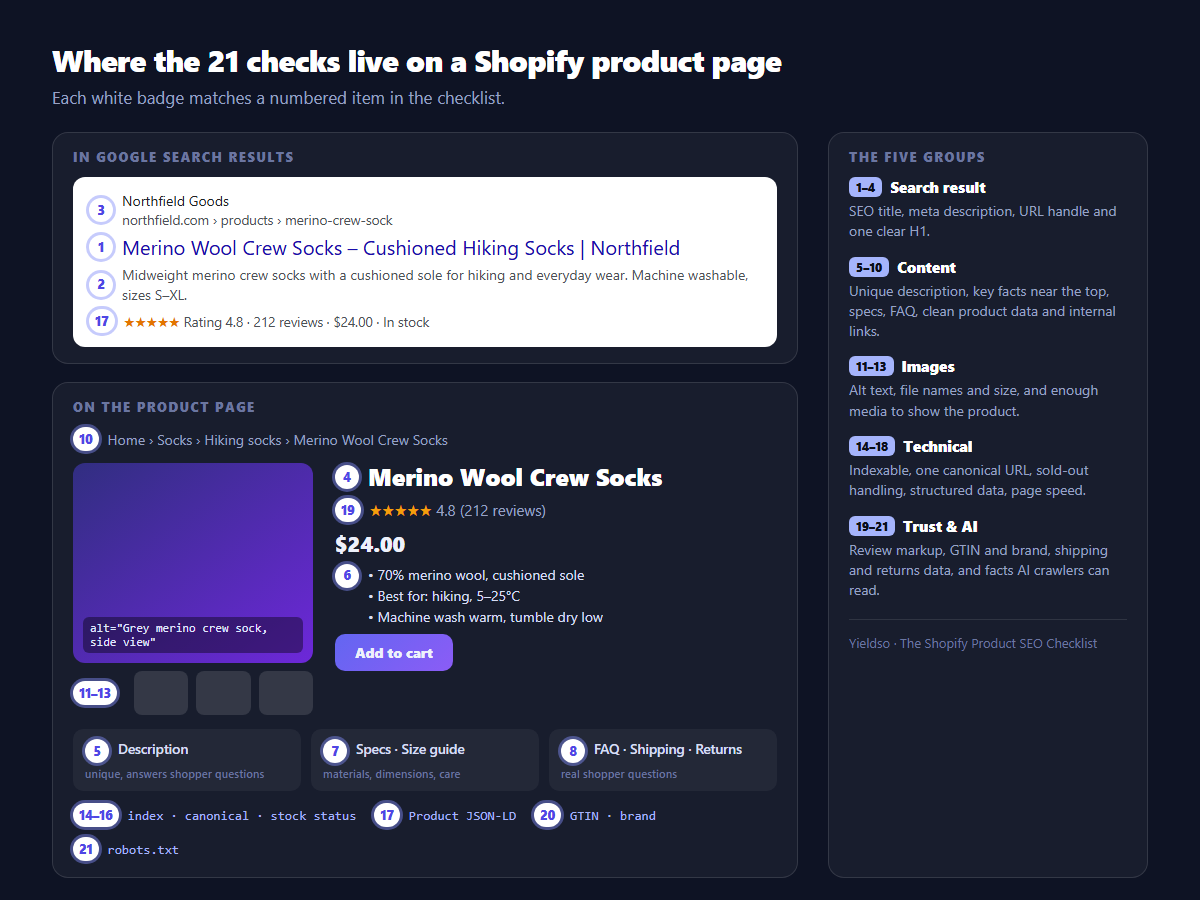
Group 1: The search result (checks 1–4)
This is what a shopper sees before they visit your site. Fixing it doesn't improve your rankings directly, but it can win you more clicks from the rankings you already have. That's why it comes first.
1 Write a unique SEO title for every product
Why: The SEO title is the blue link in Google. By default Shopify uses your product title, often followed by your store name. That's usually too short to say what the product actually is ("The Ridge") or too long to fit.
Where in Shopify: Products → [your product] → scroll to Search engine listing → Edit (the pencil icon) → Page title.
How to write it: Aim for roughly 50–60 characters, because Google cuts longer titles off. A formula that works for most products:
[Product name] – [Key attribute or type] | [Brand]
Put the words people actually search for (the product type, material, use) near the start. Don't repeat the same keyword three times. Google reads that as spam, and shoppers ignore it.
Check it: preview how your title appears in Google with the SERP Snippet Preview.
2 Write a meta description that makes the click worth it
Why: Google rewrites meta descriptions quite often, but when it uses yours, this is your sales pitch in the results. If the field is empty, Shopify falls back to the first lines of your product description. That might be a shipping notice or a sentence about your brand's history.
Where in Shopify: the same Search engine listing panel → Meta description.
How to write it: About 140–160 characters. Say what the product is, the one or two things that make it the right choice, and a practical reason to buy from you (free returns, ships tomorrow, sizes available).
Only promise what's true on the page. If the description says free returns and the page says otherwise, shoppers bounce and you lose their trust.
Write both at once: the Meta Tag Generator gives you title and description drafts with live length counters.
3 Keep the URL handle short, readable, and stable
Why: The handle is the last part of the URL (/products/merino-crew-socks). Shoppers see it in the results, and a clean one looks more trustworthy. Shopify builds it from your first product title, so imported products often end up with handles like /products/nf-sk-0042-grey-copy-1.
Where in Shopify: Search engine listing → URL handle.
How: Use lowercase words separated by hyphens, describing the product in 3–5 words. Leave out SKUs, years and words like "new" or "sale".
Changed a handle? Confirm the old URL redirects correctly with the Redirect Checker.
4 Make sure the product name is the page's one H1
Why: The H1 is the main heading of the page. Search engines and AI assistants use it to understand what the page is about. Most modern Shopify themes use the product title as the H1. Some older or heavily customised themes use the logo or a banner as the H1 instead, or have several.
How to check: Open the product page, right-click the product name, choose Inspect, and see whether the element is an <h1>. Or paste the URL into the On-Page SEO Checker, which lists every heading on the page.
Also check the product title itself. It should be the name a shopper would recognise, such as "Merino Wool Crew Socks", not an internal code like "SKU-0042 GRY M". Put details like colour and size in variants rather than in the title.
Group 2: Product content (checks 5–10)
The content is what the page ranks for and what persuades a shopper to buy. It's also what an AI assistant reads when it decides whether to recommend your product.
5 Replace manufacturer descriptions with your own
Why: If you sell a branded product with the supplier's standard description, dozens of other stores have exactly the same text. Google doesn't penalise you for this, but it will usually pick one version to show, and it's rarely the smaller store. Your own description is how you stand out.
How to write it: You don't need 1,000 words. You need to answer what a shopper would ask if they were holding the product in a shop. A structure that works:
- First sentence: what it is and who it's for. "A midweight merino crew sock with a cushioned sole, made for day hikes and cold commutes."
- Why choose it: 2–3 benefits, each linked to a concrete feature. "Merino regulates temperature, so feet stay dry on long walks."
- How to use it or what it goes with: sizing, fit, use cases, pairings.
- What makes yours different: your guarantee, your testing, where it's made.
Where your products have near-identical variants (such as ten colours of the same shirt), keep one product with variants instead of ten products with copied descriptions.
6 Put the key facts near the top, as text
Why: Shoppers skim, and so do AI systems. If the material, dimensions, compatibility or "best for" details are only in an image, or hidden in the fourth tab, many readers never find them. Search engines and AI assistants can't read text that's inside a picture.
How: Add 3–5 bullet points right under the price: material or ingredients, size or dimensions, what it's best for, and the one thing a shopper most often asks about. Many Shopify themes let you add a text block to the product template for this in the theme editor. For facts that differ per product, use metafields (see check 9).
• Cushioned sole, midweight
• Best for: hiking and everyday wear, 5–25°C
• Machine wash warm, tumble dry low
7 Add a specifications table and a size guide
Why: Specific facts like "weight 180 g" or "fits 13-inch laptops" match specific searches, answer the questions that cause returns, and are exactly the kind of detail AI assistants quote when comparing products.
How: A simple two-column table (Attribute | Value) in the description works. For products with the same kinds of specs, store them in product metafields (Settings → Custom data → Products) and show them with a theme block. Then every product displays the same fields in the same layout, and you fill in values rather than formatting tables.
Good attributes to include: materials, dimensions, weight, capacity, compatibility, care instructions, country of origin, warranty.
8 Answer the real questions shoppers ask
Why: Questions like "does it run small?" and "is it dishwasher safe?" are searches too, and they're what people ask AI assistants. A short FAQ on the page answers them before the shopper leaves to look elsewhere.
Where to find the questions:
- Your customer service inbox and chat history (the best source)
- Product reviews, including your competitors'
- Search Console → Performance → Queries, filtered to words like how, what, does, can, is
- Google's "People also ask" box when you search for the product type
Add 3–5 questions per product (or per product type) with direct, specific answers. Keep them honest: "runs slightly small, we recommend sizing up if you're between sizes" is more useful than "fits true to size!" when your returns data says otherwise.
9 Clean up product type, vendor, tags and metafields
Why: This data drives your collections, filters and internal search, and it's often what apps and feeds (including Google Merchant Center) read. Messy data leads to products missing from the right collections and duplicated or empty tag pages.
Where in Shopify: Products → [product] → Product organisation (type, vendor, collections, tags), and Category using Shopify's standard product taxonomy.
How:
- Set the standard Category. It unlocks category-specific metafields (like size, colour or material) that themes and channels can use.
- Use one consistent vendor name ("Northfield", not "Northfield", "NORTHFIELD" and "Northfield Goods Ltd").
- Keep tags for real filters and collection rules. Delete one-off tags like "sale-2023" that nobody filters by any more.
To see how Yieldso rates a product's data overall, paste a product URL into the free Shopify Product Grader.
10 Link to each product from relevant collections and pages
Why: Internal links are how Google finds your products and works out which are important. A product that's only reachable through search or a sitemap is treated as less important than one linked from your main collections.
How:
- Check every product is in at least one collection that appears in your main menu.
- Turn on breadcrumbs if your theme supports them (Home › Socks › Hiking socks › Product).
- Use the theme's "related products" or "complementary products" section (Shopify's free Search & Discovery app lets you choose complementary products manually).
- Link to key products from buying guides and blog posts using descriptive anchor text ("our merino hiking socks", not "click here").
Group 3: Images and media (checks 11–13)
11 Write alt text for every product image
Why: Alt text describes an image for shoppers using screen readers, and it's how Google Images and AI systems understand what a picture shows. On many stores it's the most commonly missing field.
Where in Shopify: Products → [product] → Media, click an image → Add alt text.
How to write it: Describe what the image actually shows, in one short sentence: product, colour, angle or context. Don't stuff keywords in, and don't start with "image of".
Give each image in a gallery its own alt text: front, back, detail, worn, packaging. Ten images with identical alt text tell Google nothing new.
12 Name image files properly and upload the right size
Why: File names like IMG_4821.jpg are a missed signal. Oversized files slow down your pages, especially on mobile.
How:
- Rename files before uploading:
merino-crew-sock-grey-side.jpg. Shopify keeps the name you upload. - Upload product images at around 2048 × 2048 px for square photos, which is Shopify's recommended size and allows zoom. Shopify's CDN automatically serves smaller, modern-format versions (such as WebP) to browsers, so you don't need to upload several sizes.
- Compress very large files before uploading. A 12 MB photo straight from a camera is unnecessary.
- Use the same aspect ratio across a collection so product grids don't jump around as they load.
13 Show enough of the product: angles, scale, context
Why: Images answer questions before they're asked, and more photos generally help conversion. Google also uses images in Shopping results and image search.
A good baseline set: a clean front shot (first image, used as the thumbnail in search), side/back, a close-up of material or detail, one showing scale or in use, and a size chart image as well as a text version of it (see check 7). A short video (Shopify supports video in product media) helps for products where movement, texture or fit matter.
Group 4: Technical (checks 14–18)
These checks decide whether Google can find, index and understand the page at all. Most are set once per store or theme, then only need checking now and then.
14 Confirm the product can be indexed
Why: Everything else on this list is wasted if the page is hidden from search engines.
How to check, in order:
- Status is Active and the product is available on the Online Store sales channel (Products → [product] → Publishing).
- No hidden SEO setting. Shopify supports a metafield (
seo.hidden) that removes a page from search results and the sitemap. Some apps set it, and so do some store owners who then forget. If a product is missing from search, check for it. - robots.txt isn't blocking it. Shopify's default
robots.txtis sensible. If you (or an app) customisedrobots.txt.liquid, check that/products/isn't disallowed. - Google has actually indexed it: in Search Console, paste the URL into URL Inspection. "URL is on Google" means it's indexed. If not, click Request indexing.
Check a page in seconds: the Indexability Checker shows the status code, robots meta tag, canonical tag and robots.txt rules for any URL.
15 Make sure every product has one canonical URL
Why: Shopify makes the same product available at several URLs: /products/merino-crew-socks, /collections/socks/products/merino-crew-socks, and variant URLs with ?variant=123. Shopify themes add a canonical tag telling Google which one is the main version (normally /products/[handle]). That's correct, and you shouldn't change it.
What to check:
- View the page source and search for
rel="canonical". It should point to/products/[handle]on your primary domain. - Your primary domain is set correctly in Settings → Domains, and the other domains (like
yourstore.myshopify.comor the non-www version) redirect to it. - Ideally, collection grids link directly to
/products/[handle]. Many newer themes already do this. Older ones link to the collection-based URL, which works but makes Google crawl duplicate URLs.
Don't create duplicate products to target different keywords, for example the same sock listed as both "hiking socks" and "walking socks". The two pages compete with each other and split your reviews.
16 Handle sold-out and discontinued products properly
Why: Deleting a product that has rankings, links or reviews throws all of that away and leaves anyone who clicks an old link on a 404 page.
The rule of thumb:
| Situation | What to do |
|---|---|
| Temporarily out of stock | Keep the page live. Show "sold out" plus a back-in-stock signup, and link to alternatives. Structured data should say OutOfStock (most themes do this automatically). |
| Discontinued, with a close replacement | Delete or archive it, then add a 301 redirect from the old URL to the replacement product. |
| Discontinued, no replacement | Redirect to the most relevant collection, not your home page. |
| Seasonal product returning next year | Keep the page (sold out or unpublished) and bring it back on the same URL, so its history carries over. |
Where in Shopify: redirects are managed under URL redirects. Type "URL redirects" in the admin search bar to find it. Add the old path (/products/old-handle) and the new target.
17 Check your product structured data
Why: Structured data (JSON-LD) is code on the page that tells search engines "this is a product, here's the price, availability, rating and brand" in a format they can read without guessing. It's what makes you eligible for results showing price, stock status and star ratings, and it's one of the clearest signals for AI systems too.
What your theme probably does already: most modern Shopify themes output basic Product structured data with name, image, description, price and availability. What's commonly missing is review ratings (added by your review app, if it supports it), brand, GTIN, and shipping and return details.
How to check:
- Paste a product URL into Google's Rich Results Test. It shows which product fields Google found and any errors.
- In Search Console, look at the Shopping section (Product snippets and Merchant listings reports) for problems across the whole store.
- Make sure the price and availability in the markup match what's on the page. A mismatch is a common reason rich results disappear.
Avoid stacking several apps that each add their own Product markup. Duplicate, conflicting markup (two prices, two ratings) is worse than a single clean block.
Need to see what good markup looks like? The Schema Markup Generator builds a valid Product block you can compare against.
18 Keep the product page fast, especially on mobile
Why: Page experience is a ranking factor, and slow pages lose shoppers before they see the price. On Shopify the most common cause isn't your images. It's apps: each one can add scripts to every page, including apps you uninstalled whose code is still in your theme.
How:
- Test a product page with Google's PageSpeed Insights and look at the mobile Core Web Vitals (LCP, INP, CLS).
- Review your installed apps. Remove any you don't use, then check your theme for leftover code (search the theme code for the app's name).
- Make sure the main product image isn't lazy-loaded. It's usually the largest element on the page, and it should load first.
- Be cautious with auto-playing video, large carousels and pop-ups that shift the layout as they load.
Group 5: Trust signals and AI search (checks 19–21)
More shoppers now start product research in ChatGPT, Perplexity, Gemini or Google's AI Overviews. These tools favour pages that state clear facts, show social proof, and can actually be read by their crawlers.
19 Show reviews on the page, and in the markup
Why: Reviews are social proof for shoppers, fresh text written by real customers for search engines, and star ratings in results when marked up correctly.
How:
- Use a review app that displays reviews on the product page as real text in the page, not only inside a widget that loads later.
- Check that the app adds
aggregateRatingto your product structured data (use the Rich Results Test from check 17). Many review apps have a setting for this. - Ask for reviews after delivery. A post-purchase email sent about a week after delivery works well for most products.
- Only mark up reviews for the product itself, collected from real customers. Google's guidelines don't allow self-written or store-wide reviews presented as product ratings.
20 Fill in GTIN, brand, shipping and return information
Why: Product identifiers let Google match your product to the same item across the web, and they're required for many Google Shopping listings. Shipping costs and return windows increasingly appear directly in search results, and shoppers use them to decide where to buy.
Where in Shopify:
- GTIN / barcode: Products → [product] → [variant] → Barcode (ISBN, UPC, GTIN, etc.). Set it on every variant, since each size or colour usually has its own. If you make your own products and don't have GTINs, leave the field empty. Don't make numbers up.
- Brand: the Vendor field. Keep it consistent (check 9).
- Shipping and returns: set your policies under Settings → Policies and your rates under Settings → Shipping and delivery. You can also give Google your return policy and shipping settings directly in Merchant Center or Search Console, which feeds the details shown in results.
On the page itself, put a one-line summary near the add-to-cart button, such as "Free shipping over $50 · 30-day free returns", with a link to the full policy.
21 Let AI crawlers in, and give them facts they can quote
Why: AI assistants can only recommend products they can read. They use their own crawlers (for example OAI-SearchBot and GPTBot for OpenAI, ClaudeBot for Anthropic, PerplexityBot for Perplexity). If your robots.txt, a security app or a firewall rule blocks them, you're invisible in those answers however good your page is.
How:
- Check which AI crawlers your store allows. Shopify's default
robots.txtdoesn't block them, but a customisedrobots.txt.liquidor a bot-protection app might. - Decide on purpose. Some crawlers collect training data and others fetch pages to answer a shopper's question in real time. Blocking the answer-time crawlers (like
OAI-SearchBot) means your products can't be cited when someone asks. - Write in a way that's easy to quote: specific, factual sentences. "Holds a 13-inch laptop and weighs 480 g" gets quoted. "The ultimate carry companion for your lifestyle" doesn't.
- Everything from checks 5–8 and 17 also applies here: facts in text, specs, FAQs and structured data are exactly what AI systems use.
See which AI crawlers can reach your store: run it through the free AI Crawler Checker.
A 30-day plan for a whole catalogue
With 50, 500 or 5,000 products you can't give every page an hour. Split the work by impact:
| When | Do this | For |
|---|---|---|
| Day 1 | Store-wide checks, done once: 14 (indexing), 15 (canonical and domain), 17 (structured data on one product), 18 (speed and unused apps), 21 (AI crawlers) | The whole store |
| Week 1 | Checks 1–4 (title, description, handle, H1) | Your top 10–20 products from Search Console |
| Week 2 | Checks 5–8 (description, key facts, specs, FAQ) | The same top products |
| Week 3 | Checks 9, 11, 12, 20 (data, alt text, files, GTIN): mostly bulk edits | All products (use Shopify's bulk editor or CSV export) |
| Week 4 | Check 16 (sold-out and discontinued) + 10 (internal links) + 19 (reviews set-up) | The whole store |
| Ongoing | Run checks 1–8 on the next 10 products each week, and on every new product before it goes live | A rolling list |
Bulk-editing tip: SEO titles and meta descriptions can be edited for many products at once. Select products in Products, click Bulk edit, and add the SEO title and SEO description columns. You can also export products to CSV, edit the SEO Title and SEO Description columns, and re-import. Always keep a copy of the original export so you can undo mistakes.
The printable checklist
| # | Check | Where in Shopify |
|---|---|---|
| 1 | Unique SEO title, ~50–60 characters, key words first | Product → Search engine listing |
| 2 | Meta description, ~140–160 characters, with a reason to click | Product → Search engine listing |
| 3 | Short, readable URL handle (redirect ticked if changed) | Product → Search engine listing |
| 4 | Product name is the page's single H1 | Theme / product title |
| 5 | Description is your own, not the supplier's | Product → Description |
| 6 | 3–5 key facts near the top, as text | Description / theme block |
| 7 | Specifications table and size guide | Description / metafields |
| 8 | FAQ answering real shopper questions | Description / theme block |
| 9 | Category, type, vendor and tags are clean | Product → Product organisation |
| 10 | Linked from menu collections, breadcrumbs, related products | Collections / Navigation / theme |
| 11 | Descriptive alt text on every image | Product → Media |
| 12 | Descriptive file names, ~2048 px, compressed | Before upload |
| 13 | Enough images: angles, detail, scale, in use | Product → Media |
| 14 | Active, on Online Store, not hidden, indexed in GSC | Product status / GSC URL Inspection |
| 15 | Canonical points to /products/[handle] on primary domain | Settings → Domains / page source |
| 16 | Sold-out kept live; discontinued 301-redirected | URL redirects |
| 17 | Valid Product structured data, matches the page | Rich Results Test / GSC Shopping |
| 18 | Good mobile Core Web Vitals; unused app code removed | PageSpeed Insights / Apps |
| 19 | Reviews on the page and in the markup | Review app settings |
| 20 | GTIN on every variant; brand, shipping and returns set | Variant → Barcode / Settings |
| 21 | AI crawlers allowed; facts written to be quotable | robots.txt / description |
Five common mistakes to avoid
- Changing handles without redirects. It's the fastest way to lose rankings you already have.
- Keyword stuffing titles and alt text. Write for the shopper first. Search engines are good at spotting the rest.
- Deleting sold-out products. Keep them live or redirect them (check 16).
- Several apps adding structured data. Conflicting markup can lose your rich results.
- Editing everything at once. If you change 500 products on one day, you can't tell which change helped. Work in batches and note the dates.
FAQ
How long should a Shopify product description be?
Long enough to answer what a shopper needs to decide, and no longer. For a simple product, that might be 150–300 words plus a specs list. A technical or expensive product might need much more. Useful, specific information matters more than word count.
Does Shopify handle SEO automatically?
Shopify handles a lot of the technical basics well: it generates a sitemap, adds canonical tags, provides a sensible robots.txt, serves images through a fast CDN, and most themes add basic product structured data. What it can't do for you is write unique titles, descriptions, alt text and product facts. That's most of this checklist.
How long until I see results?
Title and meta description changes can affect clicks within a few weeks, once Google re-crawls the page (you can speed this up with Request indexing in Search Console). Content improvements and new rankings typically take longer, often one to three months, depending on competition and how often Google crawls your store.
Should I write separate pages for each variant?
Usually not. Keep colours and sizes as variants of one product so reviews and ranking signals build up on one page. The exception is when a variant has its own clear search demand and different content (for example, a product sold in two genuinely different materials that people search for by name).
Yieldso is a Shopify app that scores every product against checks like these, prioritises them using your Search Console data, and drafts fixes for titles, meta descriptions, alt text and structured data. Nothing changes on your store until you approve it, and every change can be undone in one click. Start with the free Shopify Product Grader on a single product, or install the app to score your store.