
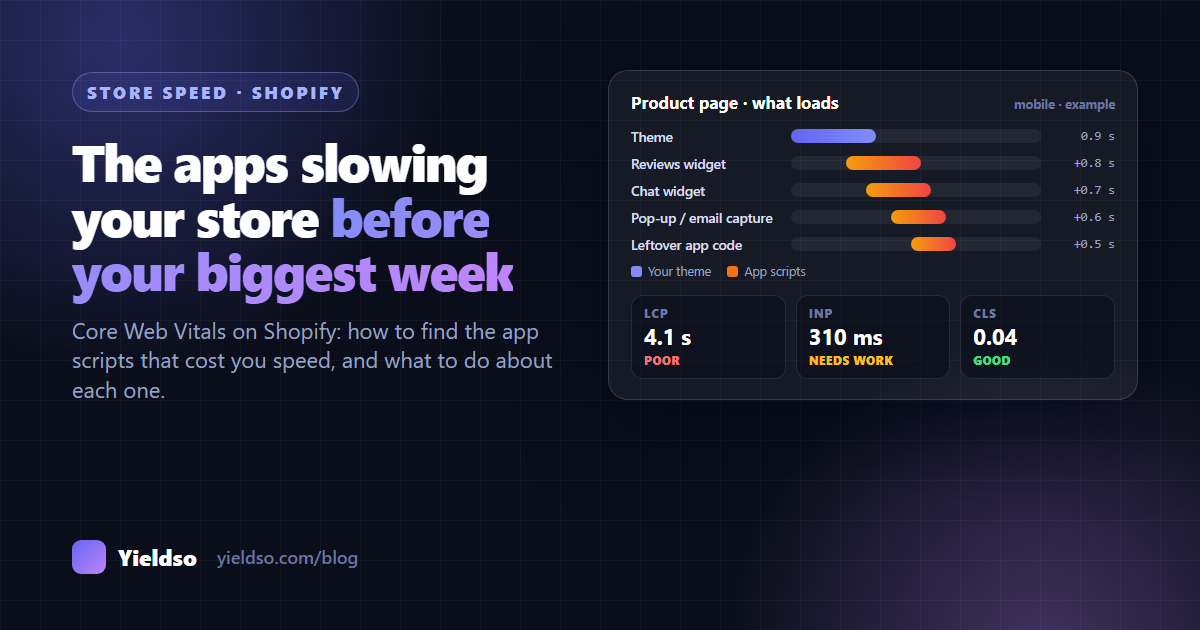
Shopify's servers and themes are usually fast. What slows most stores down is what's been added on top: app scripts, widgets, tracking tags, heavy images and code left behind by apps you've removed. Check your Core Web Vitals (LCP, INP and CLS) on mobile for your home page, best-selling product and main collection. Find which third-party scripts load on those pages, then test each one by switching it off in a copy of your theme. Remove what you don't use, defer what you can, and do it before mid-November, then stop changing things until after the sale.
Black Friday is the week your store gets the most visitors and the most first-time visitors. Many of them arrive on a phone, over a mobile connection, from a search result or an ad. If the page is slow to appear or slow to react, some of them leave before they've seen the price.
Speed is also part of how Google judges pages. Core Web Vitals won't outrank better content on their own, but between similar pages, a fast one has the edge, and a slow one loses shoppers either way.
The good news: on Shopify, the biggest speed problems are usually the easiest to fix, because they come from things you added and can take away.
Core Web Vitals in two minutes
Google measures three things about real visits to your pages, using data from Chrome users, and judges each page type by its 75th percentile: the experience that three out of four visits match or beat.
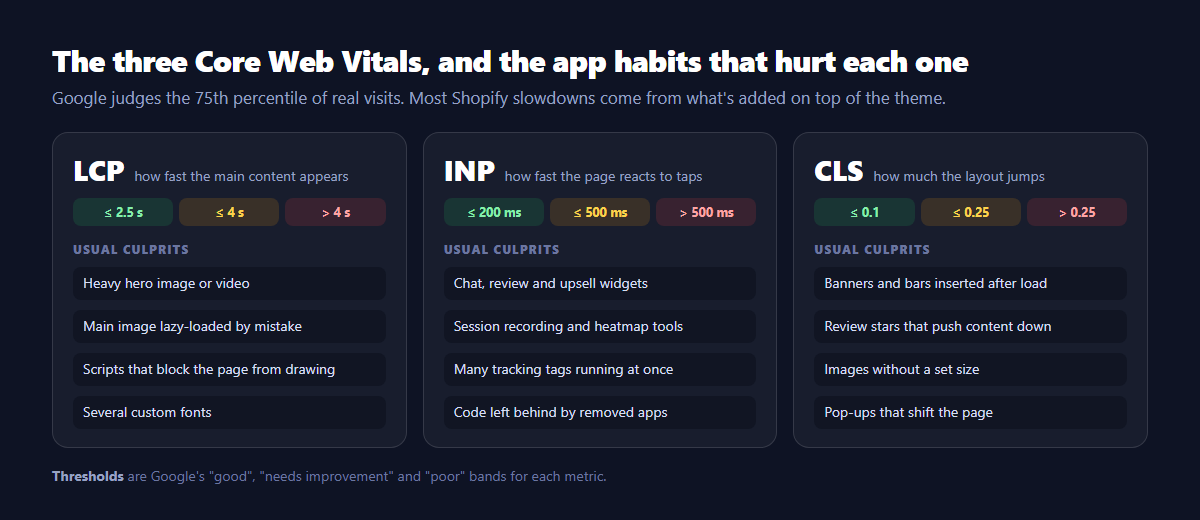
- LCP (Largest Contentful Paint): how long until the main content, usually the product image or hero banner, appears. Good is 2.5 seconds or less.
- INP (Interaction to Next Paint): how quickly the page responds when someone taps, such as choosing a size or adding to cart. Good is 200 milliseconds or less.
- CLS (Cumulative Layout Shift): how much the layout jumps around while loading. Good is 0.1 or less.
Two kinds of data come up, and they're easy to confuse:
- Field data comes from real visitors over the past 28 days. This is what Google uses, and what matters.
- Lab data (including the 0–100 PageSpeed score) is a single simulated load on a slow phone. It's useful for finding causes and testing fixes, but it varies from run to run. Don't chase the score. Use it to find problems.
Step 1: Measure the pages that matter
You don't need to test every page. Test one example of each template your visitors land on:
- Your home page
- Your best-selling product (the product template is where buying decisions happen)
- Your main collection
- Your Black Friday collection, if it's already live
Where to look:
- PageSpeed Insights: paste each URL and look at the Mobile tab. The top section shows field data, if your store has enough traffic. The bottom shows a lab test with a list of problems.
- Search Console → Core Web Vitals: field data grouped across similar pages, so you can see whether all product pages share a problem.
- Shopify's own Web performance report (in Analytics), which shows LCP, INP and CLS from your store's real visits and marks when you changed themes or apps.
Want it all at once? The free Shopify store audit runs a mobile speed test, shows real-shopper Core Web Vitals where available, and lists the apps slowing your store, along with SEO and AI checks.
Write down LCP, INP and CLS for each page before you change anything. You'll need them to see whether your changes worked.
Step 2: Find what's loading
In the PageSpeed Insights lab section, open the diagnostic called Reduce the impact of third-party code. It lists every outside domain that loads code on the page, with how much it downloads and how long it keeps the browser busy. On a typical Shopify store, you'll recognise many of them: review apps, chat, email pop-ups, upsell tools, analytics, heatmaps and ad pixels.
For each domain, ask three questions:
- Which app is this? The domain usually gives it away. If not, search for it.
- Do I still use that app? Check Settings → Apps.
- Does it need to load on this page? A chat widget may earn its place on product pages. A loyalty widget on every page probably doesn't.
theme.liquid and the snippets folder.
Step 3: Test each app by switching it off
The only reliable way to know what an app costs is to measure the page with it and without it. You can do this without touching your live store:
- Duplicate your live theme (Online Store → Themes → … → Duplicate).
- In the copy, open Customize and go to App embeds. Switch off one app's embed, or remove one app block.
- Use the copy's preview link (… → Preview, then share the preview) and run PageSpeed Insights on that URL a few times. Lab results vary, so compare the median of three runs rather than a single run.
- Compare with the same page on the live theme. Note the difference in LCP, total blocking time (the lab stand-in for INP) and CLS.
- Switch that embed back on, switch off the next one, and repeat.
You'll end up with a short list: which apps cost the most, on which pages. Often one or two account for most of the slowdown.
Step 4: Fix the worst offenders
| What you found | What to do |
|---|---|
| An app you no longer use | Uninstall it, then search the theme for leftover code and remove it |
| An app you use, but only on some pages | Check its settings for page targeting. Many widgets can be limited to product pages, or to desktop |
| Two apps doing the same job | Pick one. Two review, pop-up or upsell apps double the cost for no gain |
| A chat widget that loads immediately | Look for a "load on click" or delayed-load option, so the script loads when someone wants to chat |
| Session recording or heatmap tools | Run them for a few weeks when you need answers, not all year round |
| A banner, bar or pop-up that makes the page jump (CLS) | Use one that reserves its space, or shows as an overlay without pushing content down |
| Review stars that load late and shift the page | Check the app for a setting that renders stars in the page, or reserves their space |
| Lots of tracking tags | Move them to Shopify's customer events (pixels) where the provider supports it, and remove tags nobody uses |
After each change, re-run the same tests from Step 1 and compare with your notes. Keep a list of what you changed and when, in case something needs putting back.
Quick wins in the theme itself
- Hero banners and videos: an autoplaying video or a 4 MB banner is often the single heaviest thing on the home page. Use an image sized for the space, or a short, compressed video with a poster image.
- Product images: upload around 2048 px for square product photos. That's enough for zoom, and Shopify's CDN serves smaller, modern-format copies automatically. Very large originals still slow down some themes and apps.
- Don't lazy-load the main image. The first product image or hero banner should load straight away. Modern themes handle this, but custom sections and apps sometimes don't.
- Fonts: each extra font, and each weight of it, is another download. Two families with a couple of weights is plenty.
- Sale banners: the Black Friday banner you upload in a hurry is often the heaviest file on the page. Compress it before it goes live.
When to stop
Do this work in the first half of November and finish by around 16 November. After that, don't install new apps, switch themes or make large changes. A broken checkout or a broken page during Black Friday costs far more than a slightly slow one. Our pre-Black Friday SEO checklist has the full timeline.
Keep an eye on your numbers through the sale, and plan bigger speed work, such as changing themes or replacing a heavy app, for January.
FAQ
Is my Shopify theme the problem?
Sometimes, but less often than people think. Most modern Shopify themes are reasonably fast out of the box. Test a fresh copy of your theme with all app embeds switched off. If that's fast and your live store isn't, the difference is what's been added.
My PageSpeed score changes every time I test. Which is right?
Lab scores vary between runs because of network and server timing. Run each test three times and use the middle result, and judge real performance by the field data (real visitors), which is what Google uses.
Will removing an app break anything?
It can, if other parts of the store depend on it, for example review stars on collection pages. Remove one at a time, check the pages where it appeared, and do it well before the sale, not during it.
Do Core Web Vitals really affect sales?
A slow page loses some visitors before they see what you sell, and that matters most on mobile and for first-time visitors, both of which peak around Black Friday. Measure your own store: compare conversion rates on fast and slow pages in your analytics.
Yieldso tracks Core Web Vitals for your home, product, collection and article pages on every plan, alerts you the day a page gets slower, and flags product images heavy enough to slow pages down. From Growth, it measures your three busiest pages per template on mobile and desktop, names the installed apps most likely costing you speed, and ranks fixes by the traffic each page gets. Start with the free Shopify store audit to see your store's speed and slowest apps in one go.