
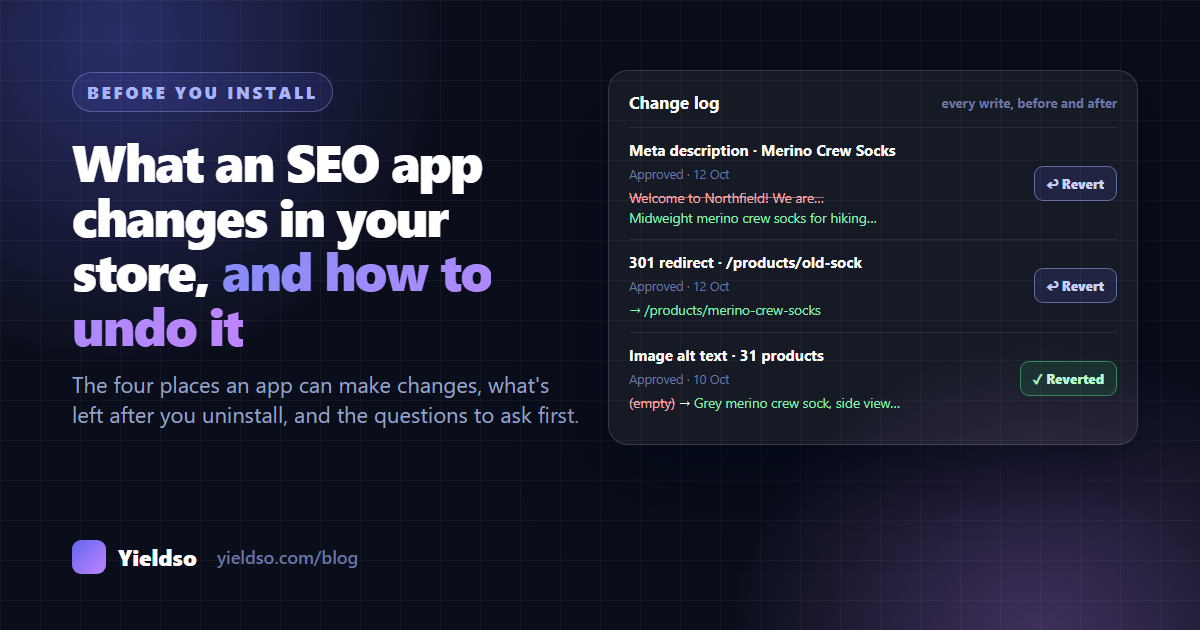
An SEO app can change your store in four places: your store data (titles, descriptions, alt text), your theme code, app embeds you switch on in the theme editor, and other objects like redirects and pages. Only app embeds disappear by themselves when you uninstall. Everything else stays, so the safest apps ask for approval before every change, keep the old value, let you undo each change, and avoid editing theme files. Before uninstalling any SEO app, export its change log and undo anything you don't want to keep.
Installing an SEO app usually means giving it permission to edit your products, your content and sometimes your theme. Most of the time that's exactly why you installed it: you want the fixes made for you.
But few merchants check what an app actually changed, whether those changes can be undone, or what's left behind after they uninstall it. Usually it doesn't matter. When it does, for example after a bulk edit that rewrote 500 product descriptions in a tone you hate, or a theme snippet still loading months after the app is gone, it matters a lot.
This guide applies to any Shopify app that changes your store. At the end, we set out exactly what Yieldso changes, how to undo it, and what happens when you uninstall.
The four places an app can change your store
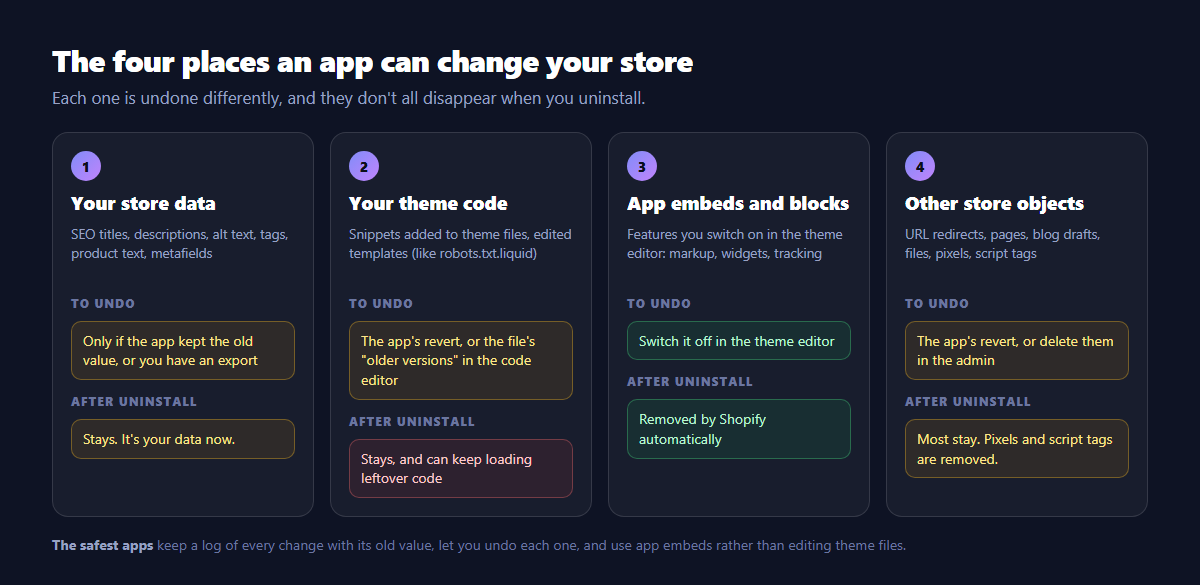
1 Your store data
What: SEO titles and meta descriptions, product descriptions, image alt text, tags, and metafields, on products, collections, pages and blog posts. This is what most SEO apps change.
How it's undone: only if someone kept the old value. Shopify doesn't keep a restorable history of old SEO titles, descriptions or alt text. Once an app overwrites them, the previous text is gone unless the app stored it or you have a product export from before.
After uninstalling: the changes stay. They're now part of your store's data. That's usually what you want (you keep the improvements), but it also means a bad bulk edit doesn't go away with the app.
2 Your theme code
What: code snippets added to theme files such as theme.liquid, or edited templates such as robots.txt.liquid. Older apps often added their features this way. Shopify now encourages apps to use app embeds instead (see 3).
How it's undone: with the app's own revert, if it has one. Otherwise, in Online Store → Themes → … → Edit code, open the file and use Older versions to compare it with or restore an earlier version, or remove the code by hand.
After uninstalling: the code stays. Leftover snippets can keep loading scripts, slow the store down or break when the app's servers stop responding. If you've removed apps in the past, search your theme code for their names.
3 App embeds and app blocks
What: features an app adds through Shopify's theme app extensions, such as structured data, review widgets or tracking. You switch them on yourself in the theme editor: Online Store → Themes → Customize, then the App embeds panel, or by adding an app block to a section.
How it's undone: switch the embed off, or remove the block, in the theme editor. Nothing is written into your theme's code files.
After uninstalling: Shopify removes the app's embeds and blocks automatically. This is the cleanest way for an app to add anything to your storefront.
4 Other store objects
What: URL redirects, new pages (such as an HTML sitemap), blog article drafts, uploaded files, customer-event pixels and script tags.
How it's undone: with the app's revert, or by deleting them in the admin. Redirects are under URL redirects (type it in the admin search bar), pages under Online Store → Pages, and pixels under Settings → Customer events.
After uninstalling: redirects, pages, drafts and files stay. That's usually good: removing redirects would bring back broken links. An app's pixels and script tags are removed when the app is uninstalled.
Seven questions to ask before you install
You'll find most answers in the app listing, the privacy policy or the help pages. If you can't, ask the developer before installing. A good app will answer them plainly.
| # | Question | What a good answer looks like |
|---|---|---|
| 1 | Does anything change in my store without my approval? | No, or only through an automatic schedule you choose to switch on |
| 2 | Do you keep the old value of everything you change? | Yes, for every change |
| 3 | Can I undo a single change, and a whole batch? | Yes to both, from inside the app |
| 4 | Do you edit my theme files? Which ones, and why? | No, or a named file for a named feature, with its own undo |
| 5 | What permissions do you ask for, and what is each for? | A specific reason for each. Nothing beyond what the features need. |
| 6 | Is there a log of every change: what, when, and who approved it? | Yes, and it can be exported |
| 7 | What happens to my store and my data when I uninstall? | A clear answer on what stays, what's removed, and when data is deleted |
How to check what an app is allowed to do
Shopify shows the permissions an app asks for on the install screen, and you can review them afterwards: go to Settings → Apps, select the app and open its permission details. The ones that matter most for an SEO app:
- Products (read or write). Write lets the app change titles, descriptions, SEO fields, alt text and tags.
- Online store pages and content, which covers pages, blog posts and their SEO fields.
- Online store navigation, which includes creating URL redirects.
- Themes. Read lets an app check your theme. Write lets it edit any theme file. Give write access only to apps you trust, for a feature that needs it.
- Orders and customers. An SEO app rarely needs these. If it asks, find out exactly why.
Some apps ask for extra permissions only when you switch on a feature that needs them. That's a good sign: you only grant what you actually use.
Five habits that make any app safer
- Export your products before a bulk change. Products → Export gives you a CSV with every SEO title and description. It's your backup if an app doesn't keep old values.
- Duplicate your theme before installing an app that edits theme code (Online Store → Themes → … → Duplicate). If something breaks, you can publish the copy.
- Try it on a few products first. Approve changes on five products, check them on the live store and in Google's Rich Results Test, then do more.
- Work in batches and note the dates. If something goes wrong, or goes right, you'll know which change caused it.
- Look at your live store after big changes. Check a product page, a collection page and
yourstore.com/robots.txt. It takes two minutes.
Before you uninstall an SEO app
Uninstalling removes the app's access straight away, and with it usually its change log and any way to undo through the app. Do this first:
| # | Do this | Why |
|---|---|---|
| 1 | Export the app's change log, if it has one | Your record of what changed, and the old values |
| 2 | Undo anything you don't want to keep | After uninstalling, the app can't undo anything |
| 3 | Undo any theme file changes, especially robots.txt.liquid | Theme edits stay after uninstalling |
| 4 | Decide about redirects and pages it created | Keeping redirects usually protects your rankings |
| 5 | After uninstalling, search your theme code for the app's name | Finds leftover snippets that still load |
| 6 | Check a product page in the Rich Results Test | Make sure structured data is still there, from your theme, if the app was providing it |
Exactly what Yieldso changes
Here's how Yieldso answers the seven questions. The same details are in our privacy policy.
What it can change
Yieldso writes to your store only what you approve, or what an automatic schedule you switched on yourself publishes:
- Product SEO titles, meta descriptions, tags and image alt text
- A "Key details" section added after a product description (your original text is kept as it is)
- SEO titles and meta descriptions of collections, pages and blog posts
- Edits to a page or article body, such as an opening answer or question-style headings
- Blog articles, created only as unpublished drafts
- 301 URL redirects
- Structured-data metafields in Yieldso's own namespace
- An HTML sitemap page, if you create one
- A customer-events pixel, only if you switch on order counting
robots.txt.liquid, only if you use the robots.txt editor and grant the optional theme permission it needs (more below)
Every change is logged and can be undone
Each change is recorded with its value before and after, when it was made and who approved it. Inside the Shopify admin, "who" is the staff member's Shopify user ID. You can undo any change in one click, and the original value goes straight back. The log can be exported to CSV.
Storefront features run through app embeds
Structured data and the speed and AI-visit measurement run through Yieldso's app embeds, which you switch on in the theme editor. Switch them off and they stop. Uninstall and Shopify removes them.
The one theme file
The robots.txt editor is the only Yieldso feature that edits a theme file. Shopify generates robots.txt from a theme template, so there's no other way to change it. It needs the optional write_themes permission, which Yieldso asks for only when you first apply a robots.txt change. Yieldso keeps the file that was there before, and one click puts it back.
Permissions
At install: read and write access to products and content, navigation (for redirects), read access to your theme (to detect the app embed and the structured data your theme already outputs), read access to script tags (to see which apps load scripts, for speed checks), and pixel and customer-event access (for optional order counting). Two permissions are optional and requested only when you switch on the feature: write_themes for the robots.txt editor, and read_orders for revenue attribution. Yieldso never asks for access to customer records, checkouts or payments.
When you uninstall
- Yieldso's access is removed immediately, and nothing more is written to your store.
- The changes you approved stay: they're your store's data. Undo any you don't want before uninstalling.
- Shopify removes Yieldso's app embeds, so its structured data and measurement stop.
- A robots.txt change made with the editor stays in your theme. Revert it in the app first if you don't want to keep it.
- Redirects, the sitemap page and any drafts stay until you delete them.
- Your store's data in Yieldso, including the change log, is permanently erased when Shopify's erasure request arrives, 48 hours after you uninstall. Export the change log first if you want a copy.
FAQ
Can an SEO app change my store without me knowing?
If it has write permissions, technically yes. That's why it matters whether the app asks for approval before each change, or only acts on a schedule you switched on. Check the app's description and reviews for how changes are applied, and look at a few products after installing.
Does uninstalling an app undo its changes?
Generally not. Changes to your products and content, theme file edits, redirects and pages stay. Only app embeds and blocks, plus the app's pixels and script tags, are removed by Shopify. Undo what you don't want before uninstalling, while the app can still do it.
Will an SEO app slow down my store?
Changes to titles, descriptions and alt text don't affect speed. Storefront features can: anything that loads a script on your pages adds work for the browser. App embeds only load while they're switched on, and you can switch them off to compare. Leftover theme code from removed apps is a common cause of hidden slowdowns.
Is it safe to give an app permission to edit my theme?
Theme write access allows editing any theme file, so give it only to apps you trust, for a specific feature you want. Ask which files the app changes and how to undo them, and duplicate your theme first.
Yieldso is free to install and score up to 100 products. Nothing changes in your store until you approve it, every change is logged with its old value, and every change can be undone in one click. Start with the free Shopify Product Grader on a single product, or install the app and look around before approving anything.