
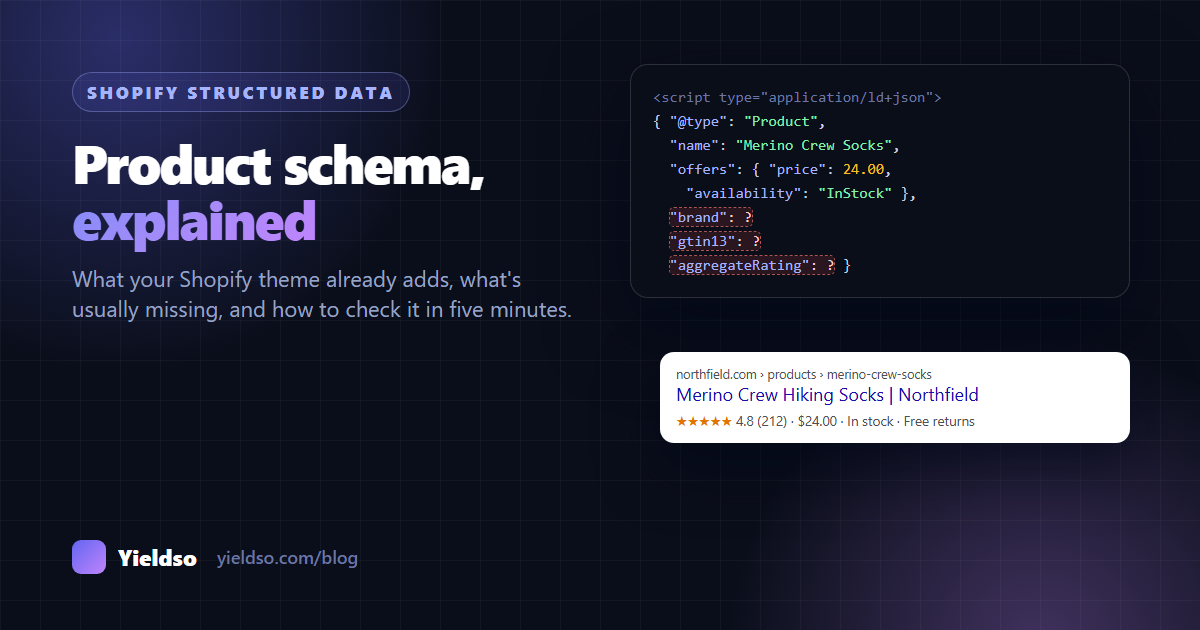
Most modern Shopify themes already add basic Product structured data: name, image, description, price, currency and stock. What's commonly missing is brand, product identifiers (GTIN), review ratings, variant details, shipping costs and the return policy. Paste a product URL into Google's Rich Results Test to see what yours has. Fill the gaps first in your Shopify data (vendor, barcode, a reviews app), and make sure there's only one Product block per page and that it matches what the page shows.
Structured data is the part of your store that shoppers never see. It's a block of code in each page that tells search engines, in a fixed format, "this is a product, it costs $24, it's in stock, it's made by this brand, and 212 people rated it 4.8".
When it's complete and correct, Google can show that information directly in search results: price, stock, star ratings, shipping and returns. AI assistants and shopping tools can read your product facts without guessing. When it's incomplete, duplicated or wrong, you miss out on those results, and sometimes lose them without noticing.
The good news for Shopify merchants is that your theme probably does a lot of this already. This guide shows you what it covers, what it usually leaves out, how to check yours in five minutes, and how to fill the gaps safely.
What structured data does (and doesn't do)
On Shopify, structured data is almost always JSON-LD: a <script type="application/ld+json"> block in the page's HTML that uses the schema.org vocabulary. A simplified Product block looks like this:
{
  "@context": "https://schema.org",
  "@type": "Product",
  "name": "Merino Crew Hiking Socks",
  "image": "https://yourstore.com/cdn/shop/files/merino-crew-sock.jpg",
  "brand": { "@type": "Brand", "name": "Northfield" },
  "gtin13": "5012345678900",
  "offers": {
    "@type": "Offer",
    "price": "24.00",
    "priceCurrency": "USD",
    "availability": "https://schema.org/InStock"
  },
  "aggregateRating": { "@type": "AggregateRating", "ratingValue": "4.8", "reviewCount": "212" }
}
What it does:
- Makes your products eligible for richer Google results: product snippets (rating, price, stock under the normal result) and merchant listings (product details in shopping-style results, including shipping and returns).
- Gives search engines, AI assistants and shopping tools your product facts in a form they don't have to interpret: the exact price, currency, stock, brand and identifiers.
What it doesn't do:
- It isn't a direct ranking boost. Good markup doesn't move a page up the results by itself. It changes how the result looks and how well machines understand it.
- It doesn't guarantee rich results. Google decides whether to show them, case by case.
- It can't describe things that aren't on the page. Markup has to match what shoppers can see.
What your Shopify theme already adds
Most modern Shopify themes, including Shopify's own Dawn and many Online Store 2.0 themes, generate product structured data with Shopify's structured_data filter, a single line in the product section such as {{ product | structured_data }}. Shopify builds the block from your product data, so it updates by itself when prices or stock change. Older or heavily customised themes may write their own JSON-LD by hand, or use an older format called microdata (itemprop attributes in the HTML).
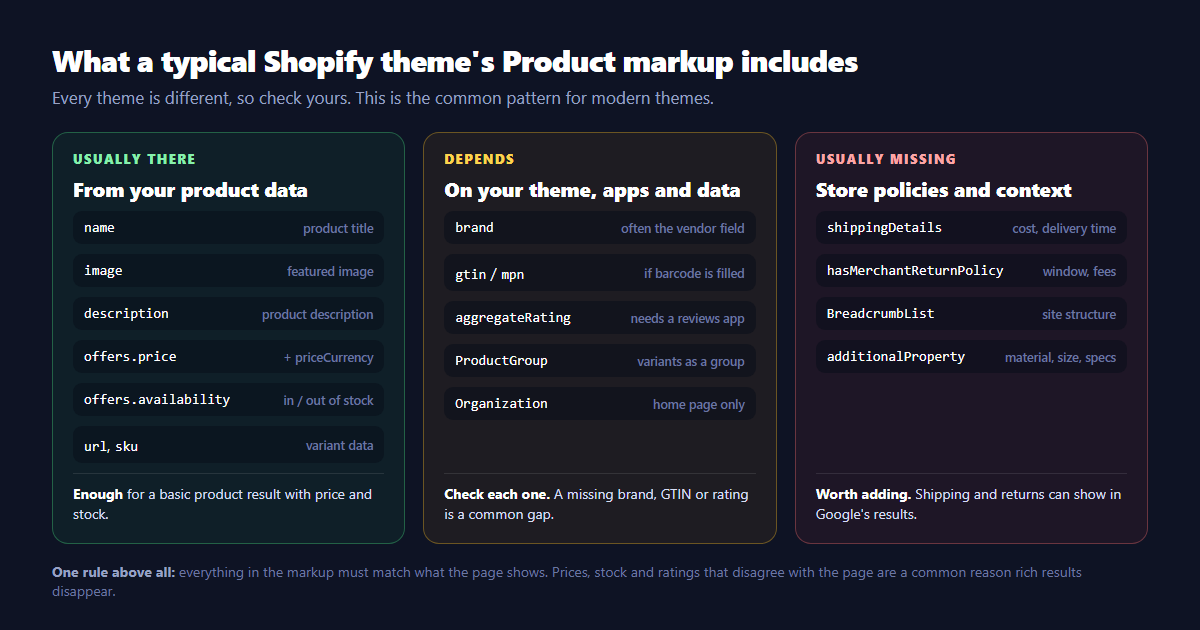
In practice, that usually means:
- Usually there: name, image, description, URL, SKU, price, currency and availability. That's enough for a basic product result.
- Depends on your theme and data: brand (usually taken from the Vendor field), GTIN (only if the variant Barcode field is filled in), ratings (only if a reviews app provides them), variants described as a group, and Organization markup on the home page.
- Usually missing: shipping costs and delivery times, the return policy, breadcrumbs, and product specifications such as material or size.
Check yours in five minutes
1 Run Google's Rich Results Test
Paste a product URL into search.google.com/test/rich-results. After it loads the page, it lists the structured data it found, typically Product snippets and Merchant listings, with a status for each.
- Errors (red) make the page ineligible for that result. Fix these first.
- Warnings (orange) are optional fields Google would like. Some are worth adding, like brand, GTIN, shipping and returns. Others, like
priceValidUntil, you can usually ignore.
Click into the detected item to see every field and value. Compare them with the page: is it the same price, the same stock status, the same rating?
2 Count the blocks in the page source
Open the product page, press Ctrl+U (⌥+⌘+U on Mac) to view the source, and search for application/ld+json. Then search for "Product".
There should be one Product (or ProductGroup) block describing this product. If you find two or three, you probably have the theme's and one or more apps' markup, often with different prices or ratings. See problem 1 below.
If the Rich Results Test found Product data but the source doesn't contain it, an app is adding it with JavaScript after the page loads. Google can usually still read it, but many other crawlers can't (more in our guide to what AI crawlers can see).
3 Look at the whole store in Search Console
In Search Console, open the Shopping section in the left menu (Product snippets and Merchant listings). These reports show valid and invalid items across your whole store, grouped by issue, so you can see whether a problem affects one product or all of them.
Want to see what a complete Product block looks like for your own product? Build one with the free Schema Markup Generator and compare it field by field with what your theme outputs.
Field by field: where each value comes from
Most gaps are fixed by filling in data in Shopify, not by editing code, because the theme builds the markup from your product data.
| Field | What it's used for | Where it comes from in Shopify |
|---|---|---|
name | The product's name | Product title |
image | Images in rich and shopping results | Product media (first image first) |
description | Context for search engines and AI | Product description |
offers.price, priceCurrency | The price shown in results | Variant price and your store currency |
offers.availability | "In stock" or "Out of stock" in results | Inventory, and whether overselling is allowed |
brand | Matching the product across the web | Vendor field (keep it consistent) |
gtin / gtin13 etc. | Identifying the exact product. Important for shopping results. | Variant Barcode (ISBN, UPC, GTIN, etc.) |
sku, mpn | Your own and the manufacturer's part numbers | Variant SKU (MPN usually needs a metafield) |
aggregateRating, review | Star ratings in results | Your reviews app (many write Shopify's standard review metafields) |
hasVariant (ProductGroup) | Describing sizes and colours as one product family | Variants and options |
shippingDetails | Shipping cost and delivery time in results | Not in theme markup by default (see below) |
hasMerchantReturnPolicy | Return window and fees in results | Not in theme markup by default (see below) |
additionalProperty | Specifications: material, size, capacity | Usually needs metafields and custom code |
Six common problems
1 Two or three Product blocks on one page
The theme outputs one, a reviews app outputs another, and an SEO app adds a third. Each may have a different price, rating or availability. Google then has to pick which to believe, and conflicting data is a common reason rich results become unreliable.
Fix: decide which source owns the Product markup. Most apps that add structured data have a setting to turn theirs off, or to add only what's missing. Keep one complete block.
2 Markup that doesn't match the page
A currency-conversion app changes the price shoppers see, but the markup still has the base price. Or a sale price shows on the page while the markup has the full price. Or the default variant is out of stock and the markup says the whole product is.
Fix: after any app or theme change, re-run the Rich Results Test and compare price, currency and availability with the page. Google's merchant-listing checks compare them too.
3 Reviews on the page, but no rating in the markup
Shoppers see stars, but the structured data has no aggregateRating, so no stars appear in search results.
Fix: check your reviews app's settings for its structured data or "rich snippets" option. Many apps also write the rating to Shopify's standard reviews.rating and reviews.rating_count metafields, which themes and other apps can use.
4 Ratings that aren't allowed
Store-wide reviews ("4.9 from 3,000 customers") marked up as each product's rating, ratings you wrote yourself, or a rating that appears in the markup but not on the page all break Google's guidelines. Spammy structured data can lead to a manual action that removes rich results for your whole site.
Fix: only mark up genuine reviews of that product, and only when they're visible on the page.
5 Invalid values
Common examples: a price written with a currency symbol ("$24" instead of "24.00" plus "priceCurrency": "USD"), availability written as plain text rather than a schema.org value, or a made-up GTIN. These usually come from hand-written theme code or old apps.
Fix: the Rich Results Test flags most of them. Leave GTIN empty for products that genuinely don't have one. Never invent numbers.
6 Markup added by JavaScript only
Some apps inject their JSON-LD after the page loads. Google renders JavaScript and can usually read it, but many other crawlers, including AI crawlers, only read the raw HTML.
Fix: prefer markup that's in the page source. If an app can only add it by script, make sure the theme's own block still covers the essentials.
Variants, shipping and returns
Products with sizes and colours
A product with variants is really a family of items, each with its own price, stock and often its own GTIN. Google supports describing this as a ProductGroup: one parent with productGroupID, the attributes it variesBy (such as size and colour), and each variant as a hasVariant Product with its own offer.
If your theme outputs a single Product with one price, the markup only describes one variant, usually the default. That's acceptable, but shoppers searching for a specific size or colour get less precise information. Check whether your theme or app supports ProductGroup. Either way, set a GTIN on every variant that has one.
Shipping and returns
Google can show shipping costs, delivery times and return windows in results. Shopify doesn't put this in the theme's markup by default, so you have two ways to provide it:
- In Google's own tools: state your shipping and return policies in Google Merchant Center, or in Search Console's settings for shopping information if you don't use Merchant Center. This applies store-wide and doesn't touch your theme.
- In the markup:
shippingDetailsandhasMerchantReturnPolicyon each offer, or a return policy on your Organization markup. This needs an app or theme code.
Whichever you use, keep it consistent with the shipping and returns policy pages shoppers actually read.
Other types worth having
- Organization on the home page: your store's name, logo, contact details and social profiles (
sameAs). It helps search engines and AI assistants connect your store to your brand. Some themes include it. Check your home page in the Rich Results Test or the Schema Markup Validator. - BreadcrumbList: shows your site structure (Home › Socks › Hiking socks) and can appear in results instead of the raw URL. Many themes don't include it.
- Article on blog posts: headline, author, date and image. Themes using
{{ article | structured_data }}already add it. - FAQPage: still valid markup, and it describes question-and-answer content clearly to machines. But since 2023, Google only shows FAQ rich results for well-known government and health websites, so don't expect expandable FAQs under your store's results.
How to add what's missing
Work through these in order. Most stores never need to go past the first.
- Fill in your Shopify data. Set a consistent Vendor (brand), fill in Barcode on every variant that has a GTIN, and switch on your reviews app's structured data option. Because the theme builds its markup from this data, these changes flow into structured data automatically.
- Use one app for what the theme can't do: variants as a ProductGroup, shipping, returns, Organization details. Choose an app that adds only the fields your theme is missing rather than a second full Product block, and check it can be switched off cleanly.
- Edit the theme code only if you're comfortable with Liquid or have a developer. Duplicate the theme first, make the change in the copy, test it in the Rich Results Test, then publish. Replace the theme's block rather than adding a second one beside it.
Checklist
| # | Check | How |
|---|---|---|
| 1 | One Product (or ProductGroup) block per product page | Page source: search application/ld+json |
| 2 | No errors in the Rich Results Test | Test 3–5 different products |
| 3 | Price, currency and stock match the page | Rich Results Test vs the page |
| 4 | Brand present and consistent | Vendor field |
| 5 | GTIN on every variant that has one | Variant Barcode field |
| 6 | Ratings in the markup, from genuine visible reviews | Reviews app settings |
| 7 | Shipping and returns provided | Merchant Center, Search Console or markup |
| 8 | Organization markup on the home page | Rich Results Test on the home page |
| 9 | Markup is in the page source, not only added by script | Page source |
| 10 | No store-wide or self-written reviews marked up as product ratings | Review the markup |
FAQ
Does structured data improve my rankings?
Not directly. It makes your pages eligible for richer results and helps machines understand your products, which can improve how many people click. Where you rank still depends on your content, links and overall site quality.
My markup is valid. Why don't I see stars in Google?
Valid markup makes a page eligible, but Google decides whether to show rich results for each search. It can also take a while after Google re-crawls the page. Check that the rating is in the markup, that the reviews are visible on the page, and that the Search Console Product snippets report shows the page as valid.
Do I need an app for structured data?
Not necessarily. If your theme uses Shopify's structured_data filter and your product data is complete (vendor, barcodes, a reviews app that provides ratings), you may already have most of what you need. An app is useful for what themes rarely cover: variants as a group, shipping and returns, and Organization details.
Can bad structured data hurt my store?
Markup that misleads, such as fake or hidden reviews or prices that don't match the page, can lead Google to ignore it or apply a manual action that removes rich results. Honest markup that matches the page is safe.
On every plan, Yieldso scores each product's structured data, including brand, identifiers and price, as part of its answer-engine readiness score. From Growth, it publishes Product structured data through its app embed, which you switch on in the theme editor. It checks your live pages, adds only what your theme is missing, and flags any duplicate block it finds. It can describe variants with their own price and stock, add the shipping and returns terms you set once in Settings, and use ratings read from your reviews app, never invented. Turning the embed off removes it. Start with the free Schema Markup Generator, or install the app to see your store's gaps.